Registration
User Registration Guide
Overview
Welcome to Sila TrueTrends! This guide will walk you through the registration process to create your account and start exploring trends powered by AI insights.
Prerequisites
- A valid email address
- A strong password (requirements listed below)
- Modern web browser (Chrome, Firefox, Safari, or Edge)
Step-by-Step Registration Process
Step 1: Navigate to Registration Page
- Open your web browser and go to the Sila TrueTrends application
- On the login page, click the "Sign up" link at the bottom of the form
- You will be redirected to the registration page
Step 2: Fill in Your Information
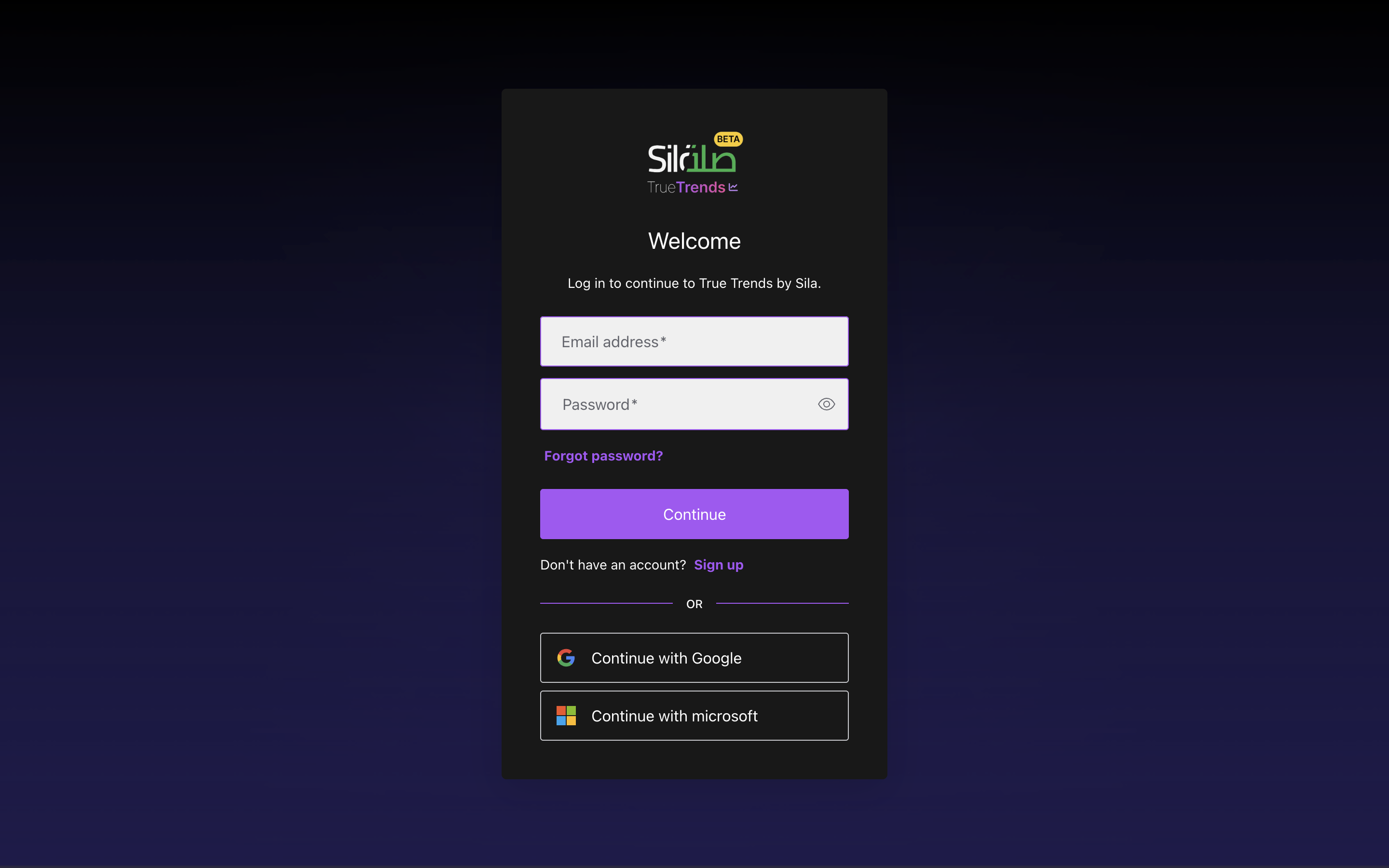 Registration form showing all required fields
Required Fields:
-
Email Address: Enter your professional or personal email address
- Must be a valid email format (e.g., name@company.com)
- This will be used for login and account recovery
-
Password: Create a strong password
- Minimum 8 characters
- Must include at least one uppercase letter
- Must include at least one lowercase letter
- Must include at least one number
- Recommended: Include special characters for added security
-
Confirm Password: Re-enter your password
- Must match the password entered above
Step 3: Accept Terms and Conditions
- Read through the Terms of Service and Privacy Policy (links provided)
- Check the box to confirm acceptance
- This is required to proceed with registration
Step 4: Complete Registration
- Click the "Sign up" button
- Wait for the registration process to complete (indicated by a loading spinner)
- If successful, you'll be automatically logged in and redirected to the main application
Common Registration Issues
Email Already Registered
Problem: "This email is already registered" Solution:
- Use the "Sign in" option if you already have an account
- Use the "Forgot password?" link if you need to reset your password
- Contact support if you believe this is an error
Invalid Email Format
Problem: "Please enter a valid email address" Solution:
- Ensure your email follows the format: username@domain.com
- Check for typos or extra spaces
- Remove any special characters except @ and .
Password Requirements Not Met
Problem: "Password does not meet requirements" Solution:
- Ensure password is at least 8 characters
- Include mix of uppercase and lowercase letters
- Add at least one number
- Consider adding special characters (!@#$%^&*)
After Registration
What Happens Next
- Automatic Login: You'll be logged in automatically after successful registration
- Welcome Tour: First-time users may see an introductory tour
- Landing Page: You'll arrive at the main chat interface where you can start exploring trends
First Steps
- Start with a simple query in the chat interface
- Explore the trending topics displayed on the landing page
- Try different personas for varied insights
- Check out the Trends Dashboard for comprehensive analytics
Security Best Practices
Password Security
- Use a unique password not used on other sites
- Consider using a password manager
- Never share your password with others
Account Protection
- Keep your email address up to date
- Log out when using shared computers
- Report any suspicious activity immediately
- Regularly review your account settings
Need Help?
Contact Support
- Use the in-app support ticket system
- Email: info@silainsights.com
Related Guides
Frequently Asked Questions
Q: Is registration free? A: No, it is not free.
Q: Can I change my email later? A: Yes, you can update your email address in account settings.
Q: What if I don't receive a verification email? A: Check your spam folder, or request a new verification email from the login page.
Q: Can I delete my account? A: Yes, account deletion can be requested through support or account manager.