First Time Setup
First-Time Setup Guide
Welcome to Sila TrueTrends!
Congratulations on creating your account! This guide will help you get started and make the most of your first session with Sila TrueTrends.
Initial Login and Orientation
Step 1: First Login
After registration is confirmed, you can login from trends.silainsights.com
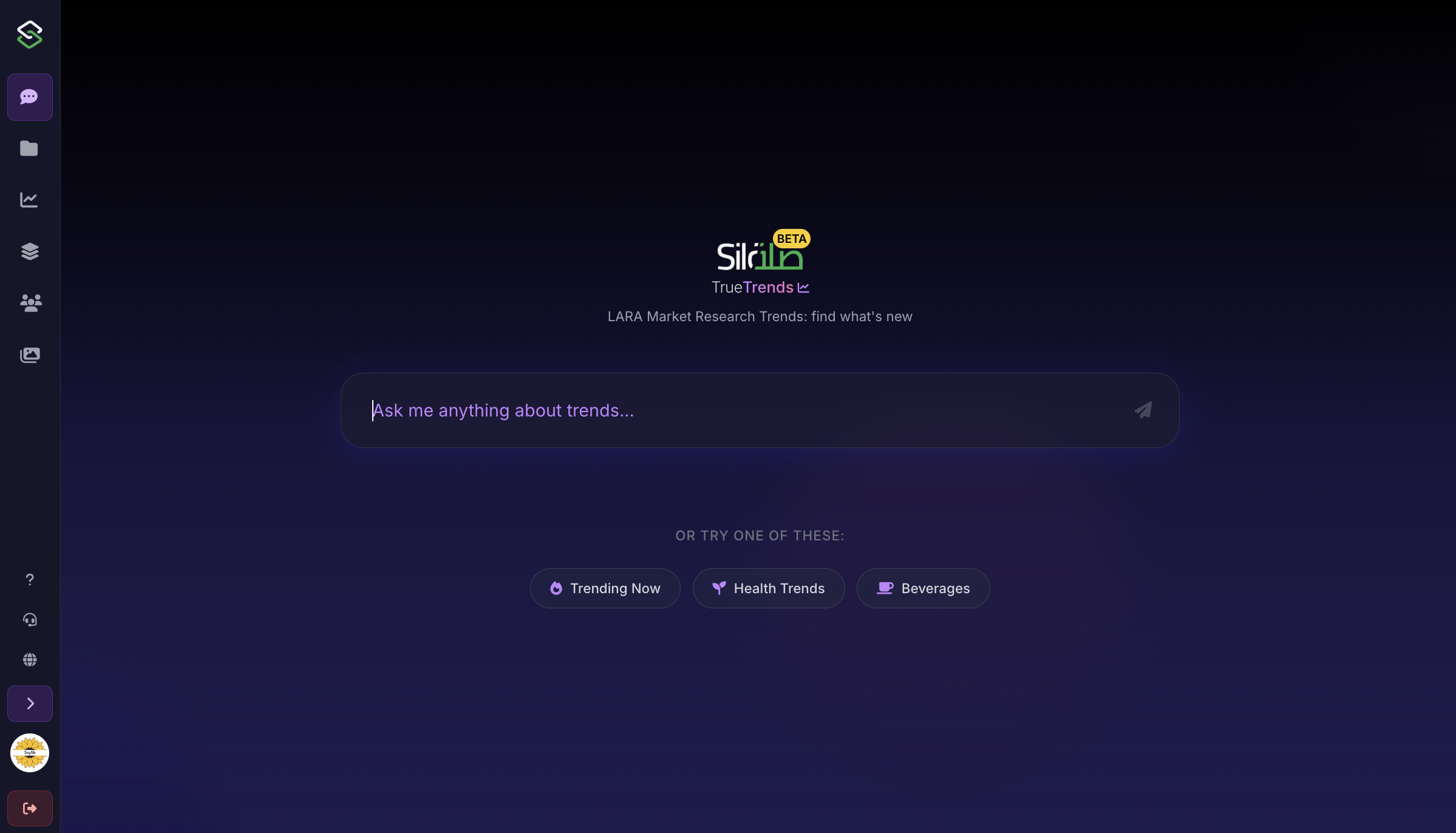
What you'll see:
- Welcome message
- Main chat interface in the center
- Sidebar navigation on the left
- Suggested trending topics
Essential First Steps
1. Explore the Chat Interface
The chat is your primary way to interact with Sila TrueTrends.
Your First Query
Try these starter questions:
- "What are the latest trending topics?"
- "Show me emerging trends in [your industry]"
- "Help me understand trend analysis"
- "What insights can you provide about [specific topic]?"
Understanding Responses
- Formatted text with clear sections
- Interactive elements you can click
- Suggested follow-ups for deeper exploration
- Related trends for broader context
2. Discover Trending Topics
The landing page displays current trending topics.
Quick Actions:
- Click any trending topic button
- This automatically starts a conversation
- Get instant insights about that trend
- Explore related trends and patterns
3. Navigate to Trends Dashboard
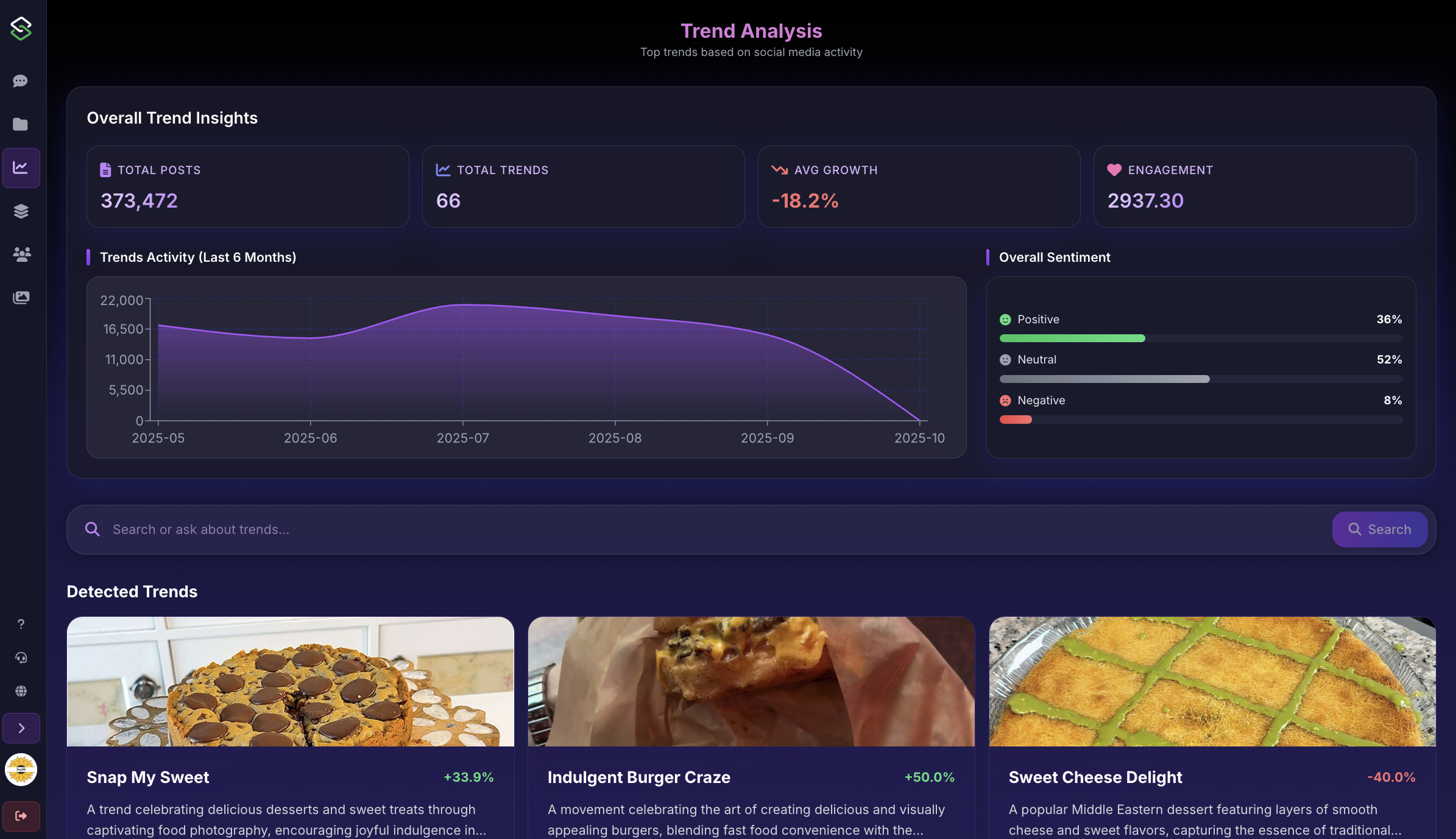
Access comprehensive trend analytics.
Getting There:
- Click "Trends" in the sidebar
- Or navigate from chat suggestions
What You'll Find:
- Overall statistics and metrics
- Trend cards with key information
- Growth indicators and sentiment
- Time-based visualizations
Personalizing Your Experience
Choose Your Relevance Level
Set how broad or focused your trend results should be.
In the Sidebar:
- Find the threshold selector
- Choose your preference:
- More Focused: Highly relevant only
- Focused: Mostly relevant (recommended for start)
- Broad: Wider range of results
- Very Broad: All available trends
Explore Different Personas
Access specialized AI personalities for unique insights.
How to Use Personas:
- Click "Personas" in sidebar
- Review available personas
- Select one that matches your needs
- Start conversation with specialized perspective
Popular Starting Personas:
- Market Analyst: Business and market insights
- Trend Expert: Deep trend analysis
- Regional Specialist: Location-specific insights
Key Features to Try First
1. Basic Search
Finding Specific Information:
- Use the search bar in relevant sections
- Enter keywords or phrases
- Apply filters to refine results
- Save useful searches for later
2. Chat History
Managing Conversations:
- Access via "Chat History" in sidebar
- All conversations are auto-saved
- Click any to resume
- Delete unwanted conversations
3. Visual Trends
Exploring Visual Patterns:
- Navigate to "Visual" section
- View image-based trend analysis
- Discover visual patterns
- See trending imagery and designs
Recommended First Session Flow
15-Minute Quickstart
- Minutes 1-3: Explore the interface
- Minutes 4-8: Ask 2-3 questions in chat
- Minutes 9-12: Visit Trends Dashboard
- Minutes 13-15: Try a different persona
30-Minute Deep Dive
- Minutes 1-5: Complete interface tour
- Minutes 6-15: Have detailed chat conversation
- Minutes 16-20: Explore trend details
- Minutes 21-25: Generate a trend story
- Minutes 26-30: Review and save important insights
Understanding the Data
Trend Metrics Explained
- Growth Rate: How fast a trend is growing
- Engagement: Social interaction levels
- Sentiment: Positive/negative perception
- Relevance: How closely matched to your query
Time Periods
- Historical: Past 6 months of data
- Current: Present trend status
- Forecast: Predicted future trajectory
Best Practices for New Users
Do's
Start with broad questions, then get specific Try different personas for varied perspectives Save important conversations Experiment with filters and settings Use suggested queries to learn
Don'ts
Don't overwhelm yourself with all features at once Don't forget to save important insights Don't hesitate to use help resources Don't ignore the suggested follow-ups Don't be afraid to experiment
Saving and Organizing
Managing Your Content
- Your chats are saved in chat history
- Organize by categories or projects
- Export data for external use
Conversation Management
- Conversations auto-save
- Name them descriptively for easy finding
- Delete old or test conversations
- Export important discussions
Getting Help
In-App Resources
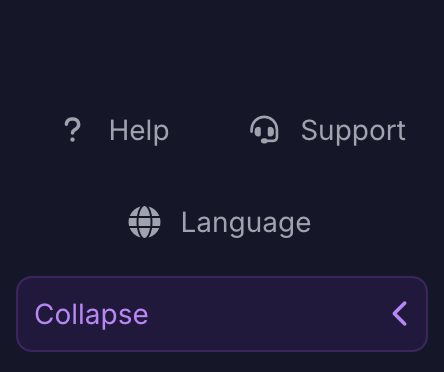
- Help Icon: Quick tips and guides
- Tooltips: Hover for explanations
- Support Widget: Live chat assistance
Learning Resources
- Documentation: Comprehensive guides
- Video Tutorials: Visual learning
- FAQs: Common questions answered
Common First-Time Questions
Q: Where should I start? A: Begin with the chat interface and ask about topics relevant to your interests.
Q: How accurate is the trend data? A: Data is aggregated from multiple sources and updated regularly for accuracy.
Q: Can I customize the interface? A: Yes, through settings you can adjust various preferences.
Q: How do I save my work? A: Conversations save automatically. Use export features for external saving.
Q: What's the difference between personas? A: Each persona offers specialized knowledge and perspective on trends.
Next Steps
After Your First Session
- Review what you've learned
- Save important insights
- Plan your next exploration
- Share findings with team (if applicable)
Building Expertise
- Day 1-3: Learn basic navigation
- Week 1: Master chat and search
- Week 2: Explore all personas
- Month 1: Become proficient in all features
Pro Tips for New Users
Maximize Your Experience
- Use natural language in chat - no special syntax needed
- Follow the suggested queries to discover capabilities
- Combine features for comprehensive analysis
- Export regularly to build your knowledge base
- Experiment with different approaches to the same question
Time-Saving Shortcuts
- Press "/" to quickly search
- Use Enter to send messages
- Escape closes modals
- Click logos to return home
Troubleshooting First-Time Issues
Chat Not Responding
- Check internet connection
- Refresh the page
- Clear browser cache
- Try a different browser
Can't See All Features
- Ensure you're fully logged in
- Check account permissions
- Some features may require activation
- Contact support for access issues
Ready to Explore!
You're now equipped with everything you need to start using Sila TrueTrends effectively. Remember, the more you explore, the more valuable insights you'll discover.