Navigation Overview
Navigation Overview
Overview
Sila TrueTrends features an intuitive navigation system designed to help you quickly access all features and insights. This guide will walk you through the main navigation elements and how to move efficiently through the application.
Main Navigation Structure
Sidebar Navigation
The collapsible sidebar is your primary navigation tool, located on the left side of the screen.
Sidebar Elements
1. Logo and Branding
- Sila TrueTrends logo at the top
- Click logo to return to home/landing page
- Purple gradient design indicating active state
2. Core Navigation Links
- Chat - Access the AI-powered chat interface
- Chat History - View and manage past conversations
- Trends - Explore the trends dashboard
- Personas - Access specialized AI personas
- Visual - Explore visual trends and patterns
3. Filter Controls
Relevance Threshold Selector
- Located in sidebar when viewing trends
- Four levels of filtering:
- More Focused: Show only highly relevant trends
- Focused: Show mostly relevant trends
- Broad: Show a broader set of trends
- Very Broad: Show all trends
4. User Menu
- Profile icon in bottom corner
- Access account settings
- Sign out option
- Support ticket creation
Sidebar Controls
- Collapse/Expand: Click hamburger icon to toggle
- Auto-collapse: On mobile devices for more screen space
- Persistent State: Remembers your preference
Top Navigation Bar
Page Headers
Each page displays:
- Current page title
- Breadcrumb navigation (where applicable)
- Page-specific actions
Quick Actions
- New Chat button (+ icon)
- Search functionality
- Notifications (if enabled)
Page-Specific Navigation
Chat Interface
- New Conversation: Start fresh chat
- Message Input: Bottom of screen with auto-expand
- Suggested Queries: Quick action buttons
- Scroll Controls: Auto-scroll with manual override
Chat History Page
- Search Bar: Find specific conversations
- Filter Options: By date, persona, or topic
- Conversation Cards: Click to resume
- Delete Options: Remove unwanted chats
- Pagination: Navigate through history
Trends Dashboard
- Trend Cards: Click for detailed view
- Category Filters: Top navigation tabs
- Time Period Selector: Historical data range
- View Toggle: Grid/List view options
- Sort Options: By relevance, date, engagement
Trend Detail Page
- Back Navigation: Return to dashboard
- Section Tabs: Overview, Analysis, Visuals, Data
- Related Trends: Sidebar suggestions
- Export Options: Download data/reports
- Story Generation: Create narrative button
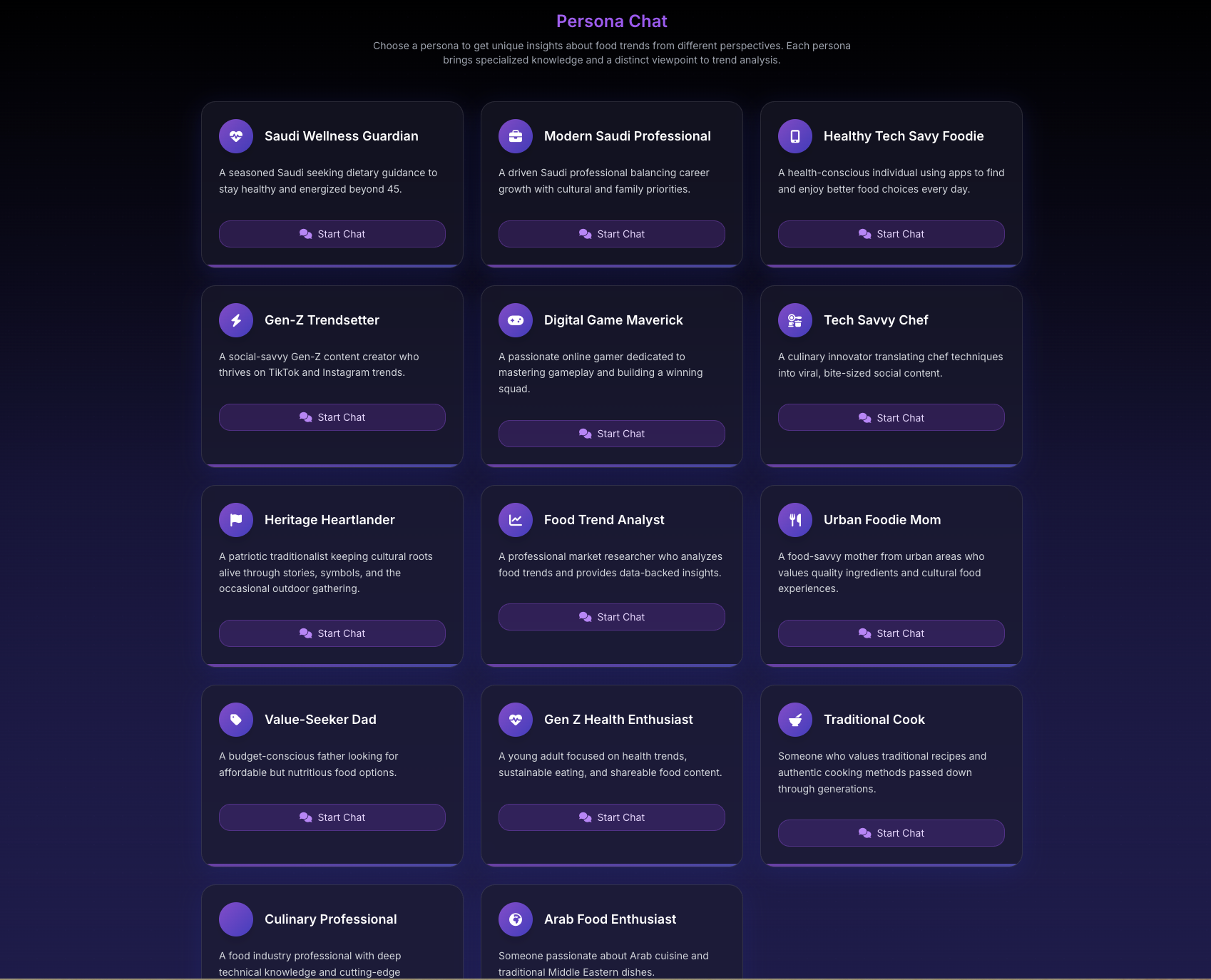
Personas Page
- Persona Grid: Visual selection interface
- Persona Info: Hover for details
- Active Indicator: Shows current persona
- Quick Switch: Change without leaving chat
Search Results
- Search Refinement: Add/remove terms
- Filter Panel: Right-side filters
- Results List: Paginated results
- View Options: Detailed/Compact
- Save Search: For future reference
Navigation Patterns
Common User Flows
Research Flow
- Start at Landing/Chat
- Enter initial query
- View suggested trends
- Navigate to Trends Dashboard
- Select specific trend
- Generate story/report
Conversation Flow
- Click "Chat" or "New Chat"
- Select persona (optional)
- Enter message
- View response
- Continue conversation
- Access via Chat History later
Analysis Flow
- Go to Trends Dashboard
- Apply filters
- Select trend card
- View detailed analysis
- Check related trends
- Export or generate story
Keyboard Shortcuts
- / - Focus search
- Ctrl/Cmd + K - Quick search
- Esc - Close modals
- Enter - Send message (in chat)
- Shift + Enter - New line (in chat)
Mobile Navigation
Responsive Design
- Sidebar becomes hamburger menu
- Bottom navigation for key features
- Swipe gestures supported
- Touch-optimized controls
Mobile-Specific Features
- Pull to Refresh: Update content
- Swipe Navigation: Between sections
- Floating Action Button: Quick actions
- Condensed Views: Space-efficient layouts
Navigation Tips
Efficiency Tips
- Use breadcrumbs for quick backward navigation
- Pin frequently used sections (if available)
- Learn keyboard shortcuts for faster access
- Use search instead of clicking through menus
- Bookmark important trend pages
Best Practices
- Start broad, then narrow: Use filters progressively
- Use personas for specialized insights
- Save conversations for future reference
- Organize with tags (where available)
- Export important data regularly
Understanding Icons
Common Icons and Their Meanings
- Home - Landing/Main page
- Chat - Conversation interface
- Trends - Analytics dashboard
- Persona - AI personality selection
- Search - Find content
- Settings - Preferences
- Growth - Trending up
- Decline - Trending down
- Favorite - Saved items
- Refresh - Update content
- Download - Export data
- Delete - Remove item
- Edit - Modify content
Accessibility Features
Navigation Aids
- Screen reader support with ARIA labels
- Keyboard-only navigation fully supported
- High contrast mode available
- Focus indicators clearly visible
- Skip links for main content
Customization Options
- Font size adjustment
- Color theme options
- Reduced motion mode
- Custom shortcuts (in settings)
Troubleshooting Navigation Issues
Page Not Loading
- Check internet connection
- Clear browser cache
- Disable browser extensions
- Try different browser
Navigation Not Responding
- Refresh the page
- Check for JavaScript errors
- Update browser
- Contact support
Missing Navigation Elements
- Check screen resolution
- Verify browser compatibility
- Disable ad blockers
- Clear cookies