Login
Login Guide
Overview
This guide will help you log into your Sila TrueTrends account and troubleshoot common login issues.
Login Process
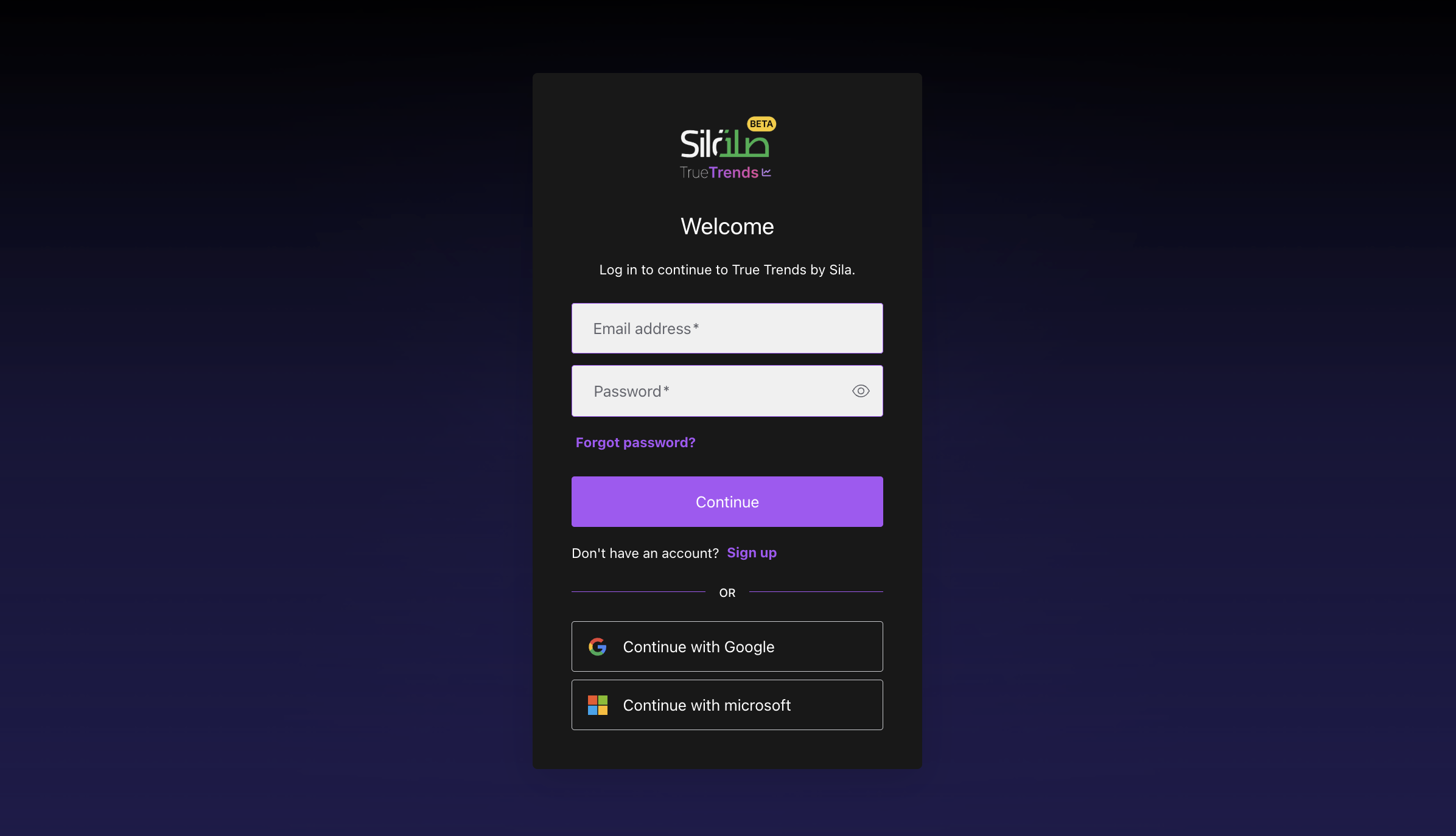
Step 1: Access the Login Page
- Open your web browser
- Navigate to the Sila TrueTrends application URL
- You'll be presented with the login page
Step 2: Enter Your Credentials
- Email Address: Use your organization domain email
Required Information
-
Email Field
- Enter your registered email (e.g., name@company.com)
- Field is not case-sensitive for email
-
Password Field
- Enter your password exactly as created
- Password is case-sensitive
- Click the eye icon to show/hide password (if available)
Step 3: Optional Settings
Remember Me
- Check the "Remember me" checkbox to stay logged in
- This keeps you logged in for up to 30 days
- Don't use on shared or public computers
- You can still be logged out due to inactivity
Step 4: Sign In
- Click the "Sign in" button
- A loading spinner will appear during authentication
- Upon successful login, you'll be redirected to the main application
Login Troubleshooting
Invalid Credentials
Error: "Failed to login. Please check your credentials and try again."
Solutions:
- Verify you're using the correct email
- Check for typos in your email
- Ensure CAPS LOCK is off
- Use "Forgot password?" if you can't remember your password
Account Locked
Error: "Account temporarily locked due to multiple failed attempts"
Solutions:
- Wait 30 minutes before trying again
- Use "Forgot password?" to reset your password
- Contact support if the issue persists
Password Issues
Forgot Password
- Click the "Forgot password?" link on the login page
- Enter your registered email address
- Check your email for reset instructions
- Follow the link in the email (expires in 24 hours)
- Create a new password following the requirements
- Log in with your new password
Password Recently Changed
- If you recently changed your password, ensure you're using the new one
- Clear your browser's saved passwords if they're auto-filling the old one
Browser Issues
Cookies Disabled
Problem: "Please enable cookies to continue"
Solution:
- Enable cookies in your browser settings
- Add Sila TrueTrends to your trusted sites
- Clear existing cookies and try again
Browser Compatibility
Supported Browsers:
- Chrome (version 90+)
- Firefox (version 88+)
- Safari (version 14+)
- Edge (version 90+)
If using an older browser:
- Update to the latest version
- Try a different supported browser
- Clear browser cache and cookies
Network Issues
Connection Problems
Error: "Network error. Please check your connection."
Solutions:
- Check your internet connection
- Try refreshing the page
- Disable VPN if using one
- Check if firewall is blocking the site
- Try accessing from a different network
After Successful Login
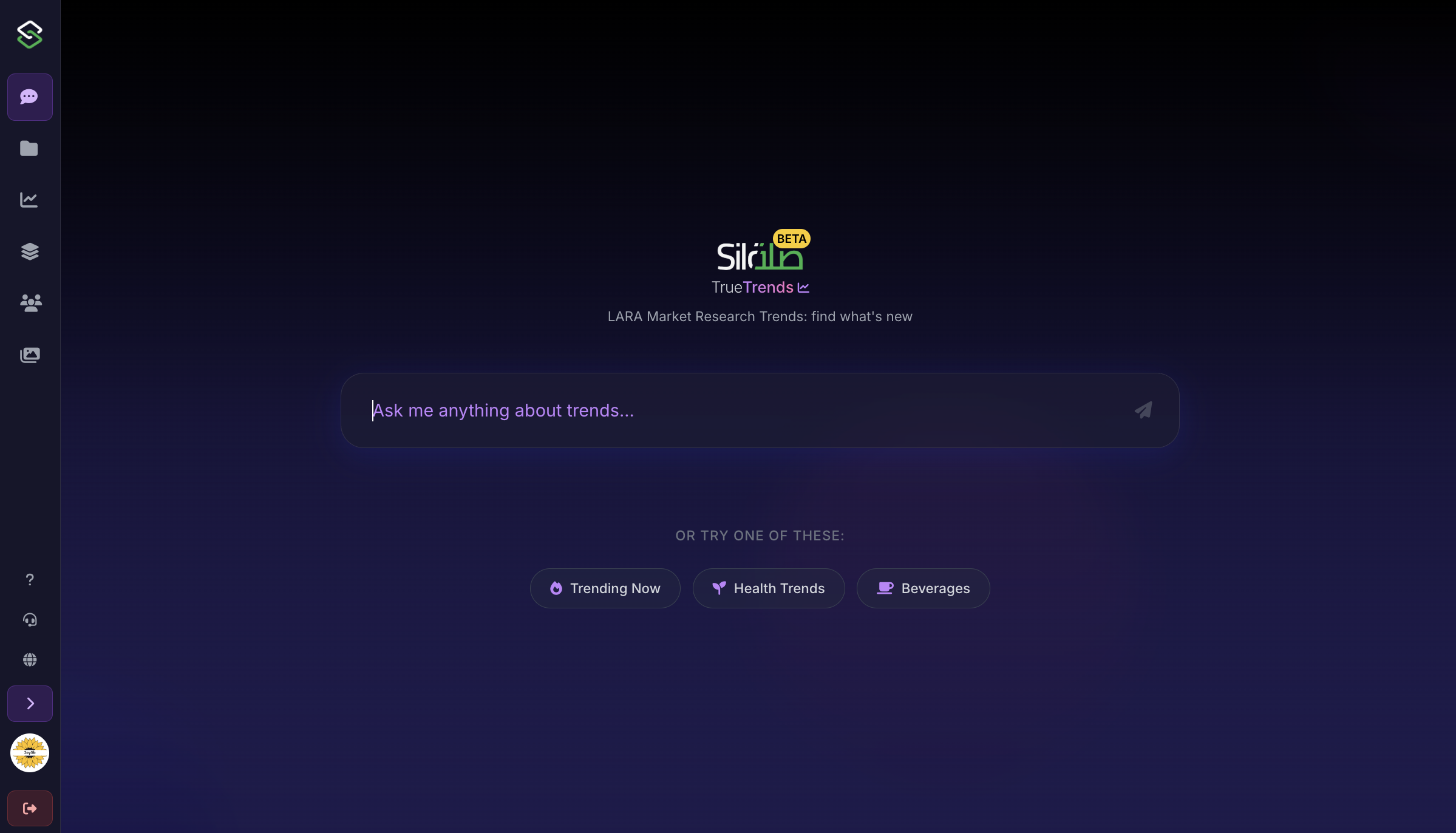
Landing Page
After login, you'll arrive at:
- The main chat interface welcome page.
Session Management
Session Duration
- Active sessions last 8 hours
- Inactive sessions timeout after 30 minutes
- "Remember me" extends session to 30 days
Multiple Devices
- You can be logged in on multiple devices
- Each device maintains its own session
- Logging out on one device doesn't affect others
Security Best Practices
Protect Your Account
- Never share your login credentials
- Use a strong, unique password
- Log out when using shared computers
- Keep your email address updated
Suspicious Activity
If you notice:
- Unrecognized login attempts
- Changes you didn't make
- Suspicious account activity
Take Action:
- Change your password immediately
- Review your account settings
- Contact support to report the issue
Quick Tips
Save Time Logging In
- Use the "Remember me" feature on personal devices
- Save your email (not password) in browser
- Consider using a password manager
- Keep your email handy
Mobile Login
- The login page is mobile-responsive
- Use the same credentials as desktop
- Consider saving the site to your home screen
- Enable biometric login if available on your device
Need Help?
Can't Access Your Account?
- Try password reset first
- Check if your account email is correct
- Contact support with your registration email
- Provide any error messages you're seeing
Contact Support
- Email: info@silainsights.com
- Include your email (never send passwords)
Related Guides
Frequently Asked Questions
Q: Can I change my login email? A: Yes, you can update your email in account settings after logging in.
Q: Why do I keep getting logged out? A: This could be due to inactivity, browser settings, or security policies. Try using "Remember me."
Q: Can I have multiple accounts? A: Each email address can only be associated with one account.
Q: Is there a mobile app? A: Currently, Sila TrueTrends is web-based and works on mobile browsers.